GPT Image 2.5 Ranks #1 for Image Generation
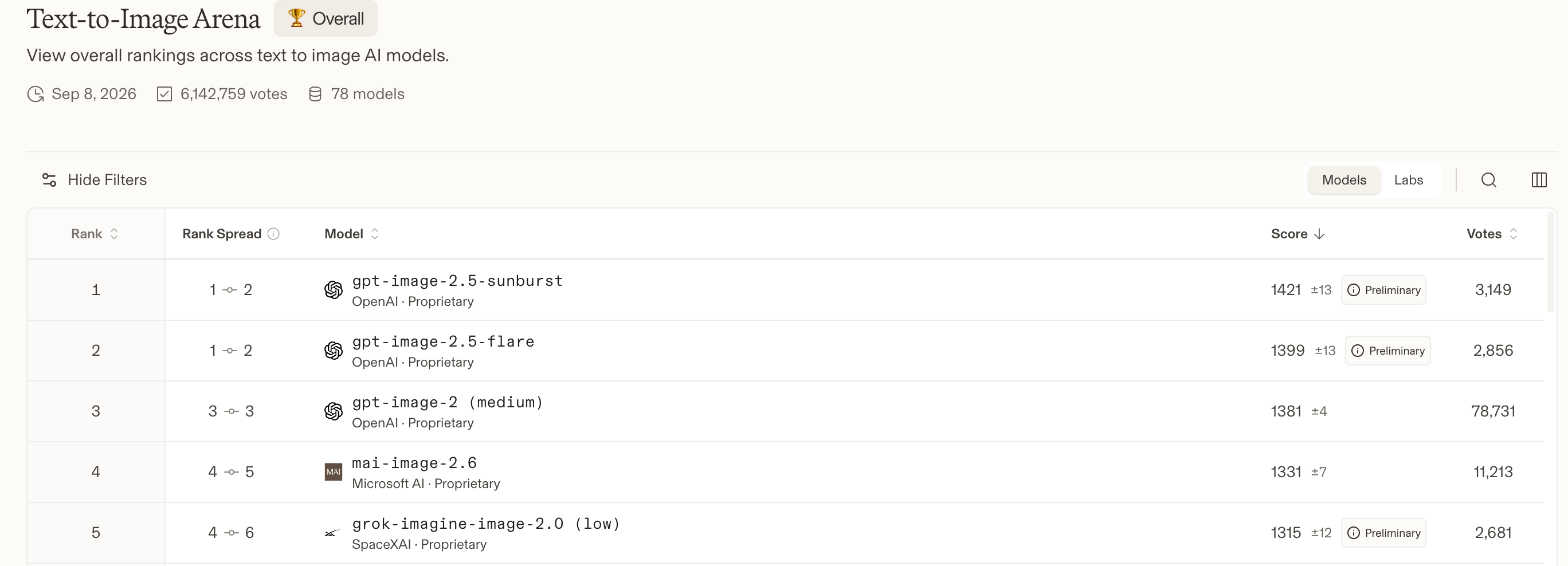
GPT Image 2.5 tops the AI image arena, ranking #1 for both text-to-image and image-to-image, making it one of the strongest image generation models available today.
 View leaderboard
GPT Image 2.5 vs GPT Image 2.0 Specifications
See the main differences at a glance.
| Feature | GPT Image 2.5 | GPT Image 2.0 |
|---|---|---|
| Model choices | Choose fast or precision mode | One model |
| Image quality | Sharper details (higher Sunburst ceiling) | Strong general quality |
| Local editing | More precise (change only the target) | More surrounding changes |
| Reference matching | More consistent (less subject drift) | Less stable on hard edits |
| Speed choice | Faster (50% lower latency) | No speed-focused model |
| Quality levels | More levels (adds XHigh + Max) | Auto / Low / Medium / High |
| Output size | Up to 4K (1K / 2K / 4K) | 1K / 2K / 4K |
| Best fit | Draft to final (choose speed or quality) | General creation and editing |
Speed varies by prompt, references, size, and service load.
GPT Image 2.5 Feature Summary
Three practical upgrades: cleaner local edits, stronger reference matching, and a faster Flare option.
| Core feature | What it improves | Use cases |
|---|---|---|
01 More Precise GPT Image 2.5 Edits (Change Only the Target) | The model can change one requested area while keeping the background, lighting, pose, and layout more stable. | Product cleanup, room edits, object removal, color changes, and approved design fixes. |
02 Stronger GPT Image 2.5 Consistency (Less Subject Drift) | The model keeps important face, product, outfit, shape, label, and style details more consistent across new images and edits. | Character scenes, product ads, virtual outfits, style transfer, and campaign variations. |
03 Faster GPT Image 2.5 Generation (50% Lower Latency) | Flare reduces wait time for everyday prompts while keeping image quality comparable to GPT Image 2.0. | Idea drafts, social posts, thumbnails, product scenes, quick variations, and high-volume work. |
How to Use GPT Image 2.5
Start with a simple request, choose the right option, and inspect the image before you keep it.
- step / 01
Choose a GPT Image 2.5 Mode
Use Text to Image when you want to make a new picture from words. Use Image to Image when you want to edit a photo, follow a visual style, preserve a person, or combine reference material. Choose Flare for faster everyday work. Choose Sunburst when a hard edit, small text, a face, a product, or a detailed layout needs more care. If you are unsure, begin with Flare and switch only when the result misses an important requirement.
- step / 02
Write a Clear GPT Image 2.5 Prompt
Tell the model what the final image should show. Add the subject, setting, framing, light, style, and required text in a clear order. For an edit, write ‘change only’ before the target and list the parts that must stay the same. Give each uploaded reference a simple role. Put exact words inside quotation marks and ask for no extra text when you are making a poster, label, or ad. Simple sentences usually work better than a long list of fancy terms.
- step / 03
Check and Refine the GPT Image 2.5 Result
Generate at 1K while testing, then select 2K or 4K for a larger final image. Check whether the model followed the request, kept the subject, spelled text correctly, and changed only the intended area. Look closely at faces, hands, product shapes, labels, and object edges. If one detail is wrong, upload the last result and request one focused change. Download the image when it meets your needs. This generator currently returns JPEG output.
GPT Image 2.5 Frequently Asked Questions
Simple answers about GPT Image 2.5, its two model options, references, image size, speed, and the best way to move from GPT Image 2.0.
Contact us at support@imagev2.ai